How to Change Audio Device on Mac
How to change selected audio device on your mac in very simple steps
When connecting a device to your Mac, it might automatically switch to that device. Many times that's what you want, but not always.
For example, if your device is connected via bluetooth the audio quality can drop significantly. There's even an article written by Apple explaining why that happens.
The main takeaway from that article is that you need to avoid using the same bluetooth headphones for both listening and speaking at the same time.
My personal recommendation is to keep the bluetooth headphones and switch the microphone to the one from the Mac.
Default way of switching audio devices on Mac
Switching audio devices on Mac can be done in 4 simple steps.
- Open System Settings
- Go to Sound
- Select the Output or Input tab
- Choose the preferred device
You'll see something like this:
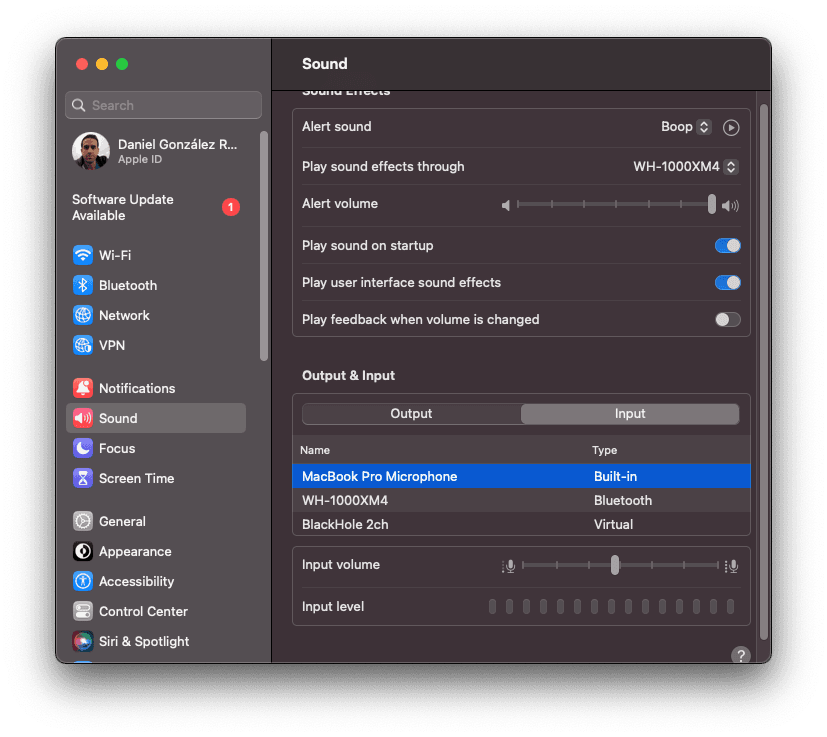
The default way is fast, especially when using the shortcut to open the Sound Preferences, but you'll have to do it every single time your Mac changes the selected devices, which can become annoying very fast.
Control Centre
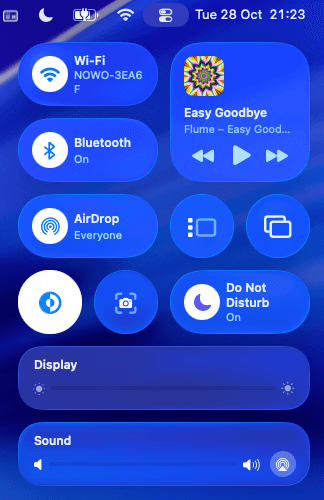
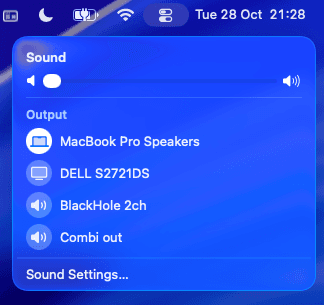
Slightly better than the Audio Settings is the Control centre. It's right on your menu bar just besides the date and time. You can click there and Control Centre will open. Then, clicking on the Sound item – at the bottom of the image– will open the sound menu.
Sound menu always visible
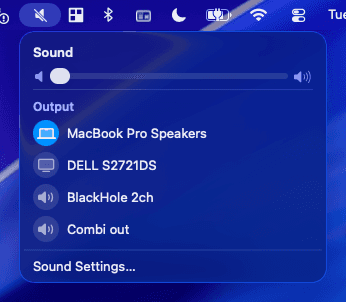
There's a way to keep that sound menu always one click away on the menu bar. For that, go to the Menu Bar settings, and set the "Sound" item to "Always Show"

That will leave an icon on your menu bar that on click will open the sound menu.
Best way of switching audio devices on Mac
There's a better way, with Recadio. It's just one shortcut away when you need it, and the best part is that it's free! Read more about using the shortcuts in the v2.0 release post.
There's also a paid option where you won't even have to change devices because Recadio will do it automatically for you!
Recadio is a tool that I created out of frustration with the default auto-switch. The free version is already a better way to switch audio devices than any alternative, hands down. And with the paid version, you only need to set the priority order once and forget about it. Recadio will always use the connected device with the highest priority.
This is the app I built and I use for managing audio devices, and you can download it now for free. There's even a one week free trial available, so it's really a no brainer to give it a try!
I hope this article was useful and you'll now be able to switch audio devices as fast as possible.